
Automating the SVG Icon Section of a Style Guide
Anybody that has ever worked with me knows that I am a big fan of having a solid icon system for any site build. After reading several articles touting the benefits of an SVG icon system, I made the jump over a year ago and I couldn’t be happier. There are many different ways of creating and using SVG sprites, but I’m sold on the gulp-based inline SVG sprites. They provide the browser support, CSS styling possibilities, and infinite scaling to make almost any project successful.
Even though I have been using this technique for quite a while, I recently stumbled upon something that made it even better. I have always loved that the Gulp plugin used to create my sprites (gulp-svg-sprite) compiles a handy reference page all on its own. What I didn’t know, was that I could modify the mustache template that the plugin uses to create the reference page. A million-dollar (okay maybe $10) idea popped into my head; I could now use this template to build the icon section of my style guide and include it as a partial. It only took a few easy steps and I was up and running.
1. Create a New Template
After a little searching in the Github repo, I found the mustache template that the gulp-svg-sprite plugin uses. I simplified it like crazy to make it fit my needs.
<ul class="sg-icon-list">
{{#shapes}}
  <li class="sg-icon-list__item" title="{{name}}">
    <!-- {{name}} -->
    <svg class="sg-icon">
      <use xlink:href="#{{name}}"></use>
    </svg>
  </li>
{{/shapes}}
</ul>
2. Tell Gulp About the Template
We simply need to tell the gulp task where our new template is located.
gulp.task('sprites', function () {
  return gulp.src('assets/icons/*.svg')
  .pipe(svgsprite({
    mode: {
      symbol: {
        inline: true,
        dest: "images",
        sprite: "icons",
        prefix: ".icon-%s",
        example: {
          template: "assets/icons-section-template.html",
          dest: "icons-section.html"
        }
      }
    }
  }))
  .pipe(gulp.dest('assets/'));
});
3. Include the Template in the Style Guide
Almost any kind of language you are using will allow you to include a partial in your style guide page. I have been doing quite a bit of WordPress work lately, so I’ll show you the super simple way to do it in PHP.
<?php include("assets/images/icons-section.html"); ?>4. Add a Tiny Bit of Styling
I’m not going to waste your time here, but don’t forget to add a default size for all of these icons to display properly using the .sg-icon class. I usually have a special stylesheet that is just for the style guide and isn’t loaded anywhere else.
5. Profit.
Load up that style guide and bask in your glory!
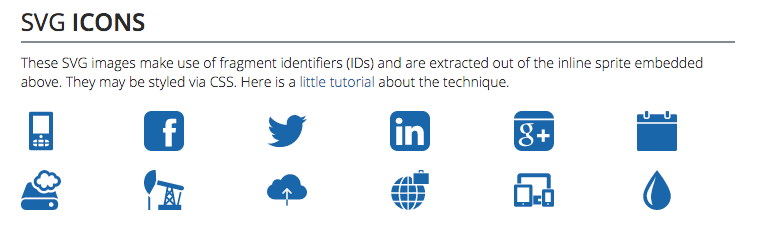
Now every time you add a new SVG file in your icons directory, it will show up in the style guide. Magic!
Want to read more?
Check out all of my notes.